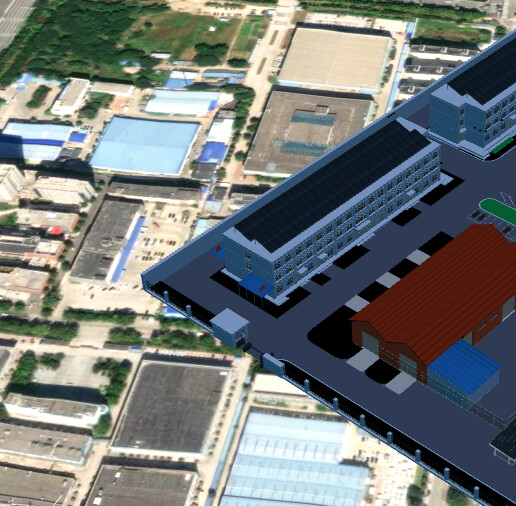
I loaded the model into the scene. I don’t want it to be affected by the sunlight because it would create shadows on both sides, which looks very unattractive. How can I increase the brightness of the model without affecting the map tiles?
Or how can we make the model look more normal instead of looking ugly?

Hi @13582345021 ,
Thanks for your post and for being part of the Cesium community.
First question is to ask how the colors in your tileset are defined, are they per feature or per material?
Feature refers to a logical part of a 3D tile — for example each building in a city model, room in a building, tree in a forest, pipe segment in a utility map, etc. Colors are defined per feature via:
- A property in the tile’s Batch Table (legacy)
- A property in **EXT_feature_metadata (modern spec)
- Or simply derived using
color() in a style, applied per-feature
Per-material means the colors are baked into textures or hardcoded into the glTF material.
The most fundamental way to determine if your tileset is per-feature or per-material by inspecting the tileset.json (there are other ways too but tileset.json )
"batchTable" or "featureTable": Indicates per-feature data- glTF materials with fixed colors or textures: Indicates per-material
If your tileset is er-feature, you can set colors for each feature. If color is baked into the material, you may be able to use
tileset.style = new Cesium.Cesium3DTileStyle({
  color: "color() * 1.5" // brighten everything
});
if the tileset uses KHR_materials_unlit or standard PBR, or if the baked color or texture supports being multiplied.
Please let us know if that helps and if you have follow up questions.
Best,
Luke
Perhaps I didn’t express myself clearly. Let’s start with the first question: How can we ensure that the model remains bright without being affected by the lighting in the scene, and also eliminate the shadows on the model? thank you
I think the first place to start would probably be KHR_materials_unlit, which is intended for that purpose. Assuming you’re loading a glTF model, it can be converted to unlit with:
npm install --global @gltf-transform/cli
gltf-transform unlit in.glb out.glb
If that isn’t working for you, more information about the model might be necessary.
Based on https://github.com/CesiumGS/cesium/pull/6977, I believe unlit shading disables scene lighting, but currently does not disable shadows.